English · ภาษาไทย
English
Step 1 — Entering batch delete mode
Open your Inventory and press the Batch button at the top right of the window (hover over it and it reads Batch delete). Next to it is the Bin button, which shows how many items are in the recycle bin.
- Once you are in this mode the Batch button turns into Done — press it to leave the mode
- The panel at the top shows how many you have selected (0 selected (0 pcs)) and the helper buttons This page, By grade, Sam…, Clear and Delete
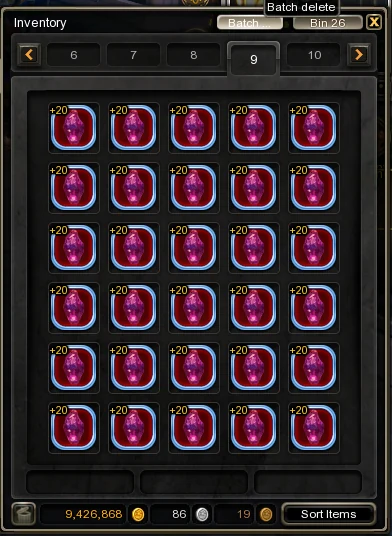
The inventory with the Batch and Bin buttons 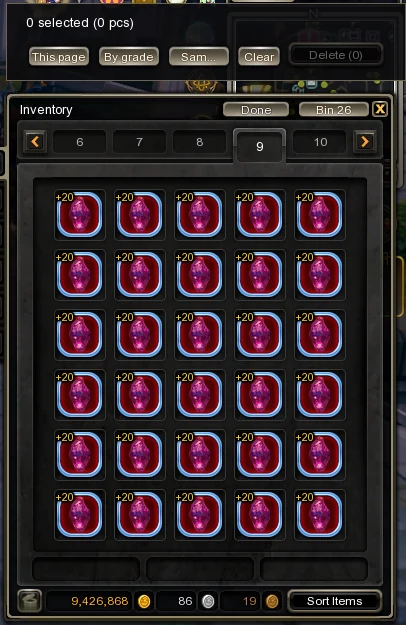
Batch delete mode and the panel at the top
Step 2 — Selecting items and deleting
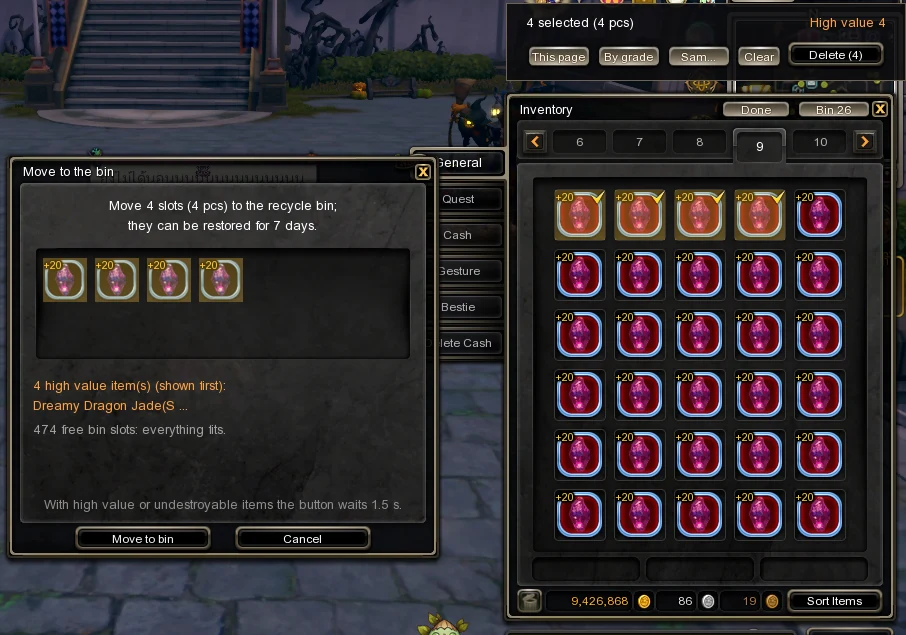
Click each item you want to delete. Selected slots get a tick and change colour, and the top panel counts them (for example 4 selected (4 pcs)). You can also use This page to pick the whole page, By grade to pick by grade, and Clear to reset the selection.
- If your selection includes high-value items, a High value tag with the count appears at the top
- The Delete button shows how many will go (for example Delete (4))
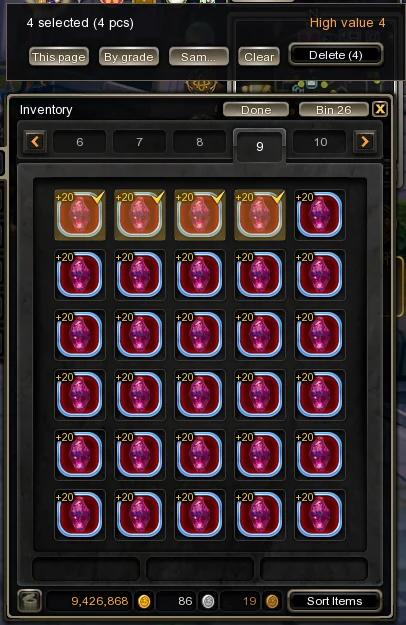
Items selected, with the High value tag Press Delete and a Move to the bin window asks you to confirm. It tells you the items go to the recycle bin and can be restored for 7 days.
- The window shows the items being moved and lists high-value items first (for example 4 high value item(s))
- The last line reports the free bin space (for example 474 free bin slots: everything fits)
- With high-value or undestroyable items the Move to bin button waits 1.5 seconds before it can be pressed, to prevent slips
- Press Move to bin to confirm, or Cancel to back out
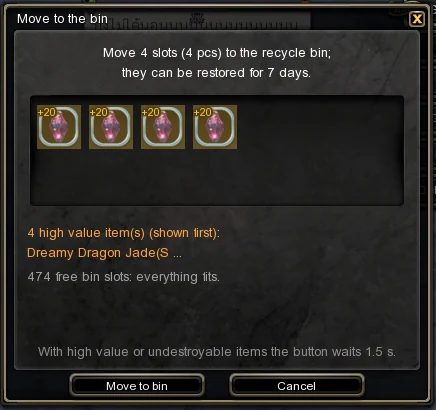
The Move to the bin confirmation window
Step 3 — Undoing a mistake
After the move, a bar says Moved to the bin with the number of slots and pieces (restorable for 7 days). The number on the Bin button goes up by the amount you moved.
- Press Undo on the bar to get the items straight back (the number in brackets is the time left)
- Afterwards, open the Bin button to browse and restore items for up to 7 days
- Press Done to leave Batch mode

The notice after moving to the bin, with the Undo button Check before you confirm
Items leave your bag the moment they go into the bin, so read the High value list in the confirmation window every time.
ภาษาไทย
ลบไอเทมหลายชิ้น (Batch delete)
ลบไอเทมหลายชิ้นพร้อมกัน — เลือกทีเดียว ย้ายเข้าถังรีไซเคิล กู้คืนได้ 7 วัน
ขั้นที่ 1 — เข้าโหมดลบหลายชิ้น
เปิดกระเป๋า (Inventory) แล้วกดปุ่ม Batch มุมขวาบนของหน้าต่าง (เอาเมาส์ชี้จะขึ้นข้อความ Batch delete) ข้างกันคือปุ่ม Bin ที่แสดงจำนวนของในถังรีไซเคิล
- เมื่อเข้าโหมดนี้ ปุ่ม Batch จะเปลี่ยนเป็น Done ใช้กดเพื่อออกจากโหมด
- แผงด้านบนแสดงจำนวนที่เลือกอยู่ (0 selected (0 pcs)) และปุ่มช่วยเลือก This page, By grade, Sam…, Clear และ Delete
กระเป๋าพร้อมปุ่ม Batch และ Bin โหมด Batch delete และแผงตัวเลือกด้านบน
ขั้นที่ 2 — เลือกไอเทมและลบ
คลิกไอเทมที่ต้องการลบ ช่องที่เลือกจะมีเครื่องหมายถูกและเปลี่ยนสี แผงบนจะนับจำนวน (เช่น 4 selected (4 pcs)) หรือใช้ปุ่มช่วยเลือกทั้งหน้า (This page) เลือกตามเกรด (By grade) และ Clear เพื่อล้างการเลือก
- ถ้ามีไอเทมมูลค่าสูงอยู่ในที่เลือก จะมีป้าย High value แสดงจำนวนที่ด้านบน
- ปุ่ม Delete แสดงจำนวนที่จะลบ (เช่น Delete (4))
เลือกไอเทมแล้วและป้าย High value กด Delete จะมีหน้าต่าง Move to the bin ยืนยัน แจ้งว่าไอเทมจะถูกย้ายไปถังรีไซเคิลและกู้คืนได้ภายใน 7 วัน
- หน้าต่างโชว์ไอเทมที่จะย้าย และรายชื่อไอเทมมูลค่าสูงขึ้นก่อน (เช่น 4 high value item(s))
- บรรทัดสุดท้ายบอกช่องว่างในถัง (เช่น 474 free bin slots: everything fits)
- ถ้ามีไอเทมมูลค่าสูงหรือทำลายไม่ได้ ปุ่ม Move to bin จะรอ 1.5 วินาทีก่อนกดได้ เพื่อกันกดพลาด
- กด Move to bin เพื่อยืนยัน หรือ Cancel เพื่อยกเลิก
หน้าต่างยืนยัน Move to the bin
ขั้นที่ 3 — กู้คืนถ้าลบพลาด
หลังย้ายสำเร็จ จะมีแถบแจ้ง Moved to the bin พร้อมจำนวนช่องและชิ้น (restorable for 7 days) ตัวเลขบนปุ่ม Bin จะเพิ่มขึ้นตามจำนวนที่ย้าย
- กด Undo ที่แถบแจ้งเพื่อเอาของกลับทันที (ตัวเลขในวงเล็บคือเวลาที่เหลือ)
- หลังจากนั้นเปิดปุ่ม Bin เพื่อดูและกู้ของได้ภายใน 7 วัน
- กด Done เพื่อออกจากโหมด Batch
แถบแจ้งหลังย้ายไปถังรีไซเคิลพร้อมปุ่ม Undo ตรวจให้ดีก่อนกด
ไอเทมจะหายจากกระเป๋าทันทีที่ย้ายเข้าถัง ตรวจรายการ High value ในหน้าต่างยืนยันทุกครั้ง