English · ภาษาไทย
English
Step 1 — Opening Special Settings
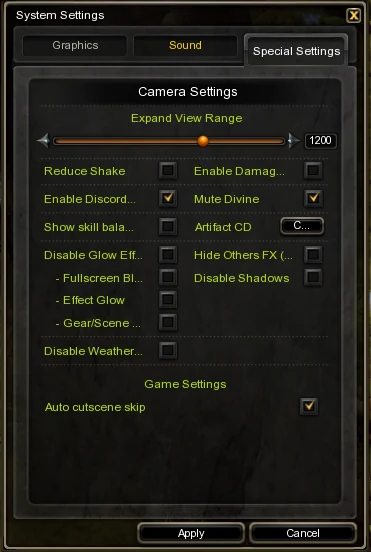
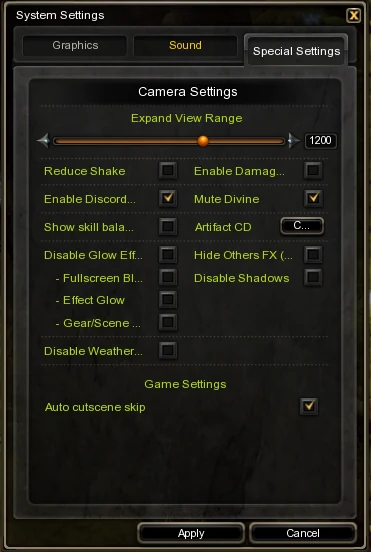
Open the settings window (System Settings) from the Setting option and choose the Special Settings tab, next to Graphics and Sound.
- This tab is completely separate from the Mokoko menu
- It has two parts: Camera Settings and Game Settings
- Apply (save) and Cancel are at the bottom
The System Settings window, Special Settings tab
Step 2 — Camera Settings
The upper part holds camera and effect options.
- Expand View Range — a slider for the view distance (set to 1200 in the screenshot)
- Tick boxes: Reduce Shake, Enable Damag…, Enable Discord…, Mute Divine, Show skill bala…, Disable Glow Eff…, Hide Others FX (…, Disable Shadows and Disable Weather… (some names are cut off in the window)
- Disable Glow Eff… has sub-options Fullscreen Bl…, Effect Glow and Gear/Scene …
- Artifact CD has a settings button beside it
Step 3 — Game Settings and saving
The lower part is Game Settings, which holds Auto cutscene skip to skip cutscenes automatically. When you are done, press Apply.
- After Apply the game says Full changes will be applied once the game is restarted
Good to know
Some settings only take full effect after restarting the game.
ภาษาไทย
Special Settings (ตั้งค่าพิเศษ)
ตั้งค่าพิเศษในหน้าต่างตั้งค่า — ปรับกล้อง เอฟเฟกต์ และการข้ามคัตซีน
ขั้นที่ 1 — เปิด Special Settings
เปิดหน้าต่างตั้งค่า (System Settings) จากตัวเลือก Setting แล้วเลือกแท็บ Special Settings ซึ่งอยู่ถัดจาก Graphics และ Sound
- แท็บนี้แยกจากเมนู Mokoko โดยสิ้นเชิง
- มีสองส่วนคือ Camera Settings และ Game Settings
- ด้านล่างมีปุ่ม Apply (บันทึก) และ Cancel (ยกเลิก)
หน้าต่าง System Settings แท็บ Special Settings
ขั้นที่ 2 — Camera Settings
ส่วนบนเป็นการตั้งค่ากล้องและเอฟเฟกต์
- Expand View Range — แถบเลื่อนปรับระยะมุมมอง (ในภาพตั้งไว้ที่ 1200)
- ช่องติ๊ก: Reduce Shake, Enable Damag…, Enable Discord…, Mute Divine, Show skill bala…, Disable Glow Eff…, Hide Others FX (…, Disable Shadows และ Disable Weather… (ชื่อบางข้อถูกตัดในหน้าต่าง)
- Disable Glow Eff… มีตัวเลือกย่อย Fullscreen Bl…, Effect Glow และ Gear/Scene …
- Artifact CD มีปุ่มตั้งค่าอยู่ข้างๆ
ขั้นที่ 3 — Game Settings และการบันทึก
ส่วนล่างคือ Game Settings ซึ่งมี Auto cutscene skip สำหรับข้ามคัตซีนอัตโนมัติ เมื่อตั้งครบแล้วกด Apply
- หลังกด Apply ระบบแจ้งว่า Full changes will be applied once the game is restarted
ข้อควรรู้
บางการตั้งค่ามีผลเต็มที่หลังรีสตาร์ตเกม